Learn how to create, manage, and use custom AI Assistant prompts in the Lead Generation Tool. Generate summaries, research, emails, and CRM-ready insights tailored to your lead search type and sales strategy.
Overview
The Lead Generation Tool’s AI Assistant allows you to create custom prompts tailored to your sales, marketing, and research strategies. You can use built-in prompts, copy from the AI Library, or create your own custom prompts that work directly with your lead search results and CRM.
Step-by-Step: Prompting the AI Assistant
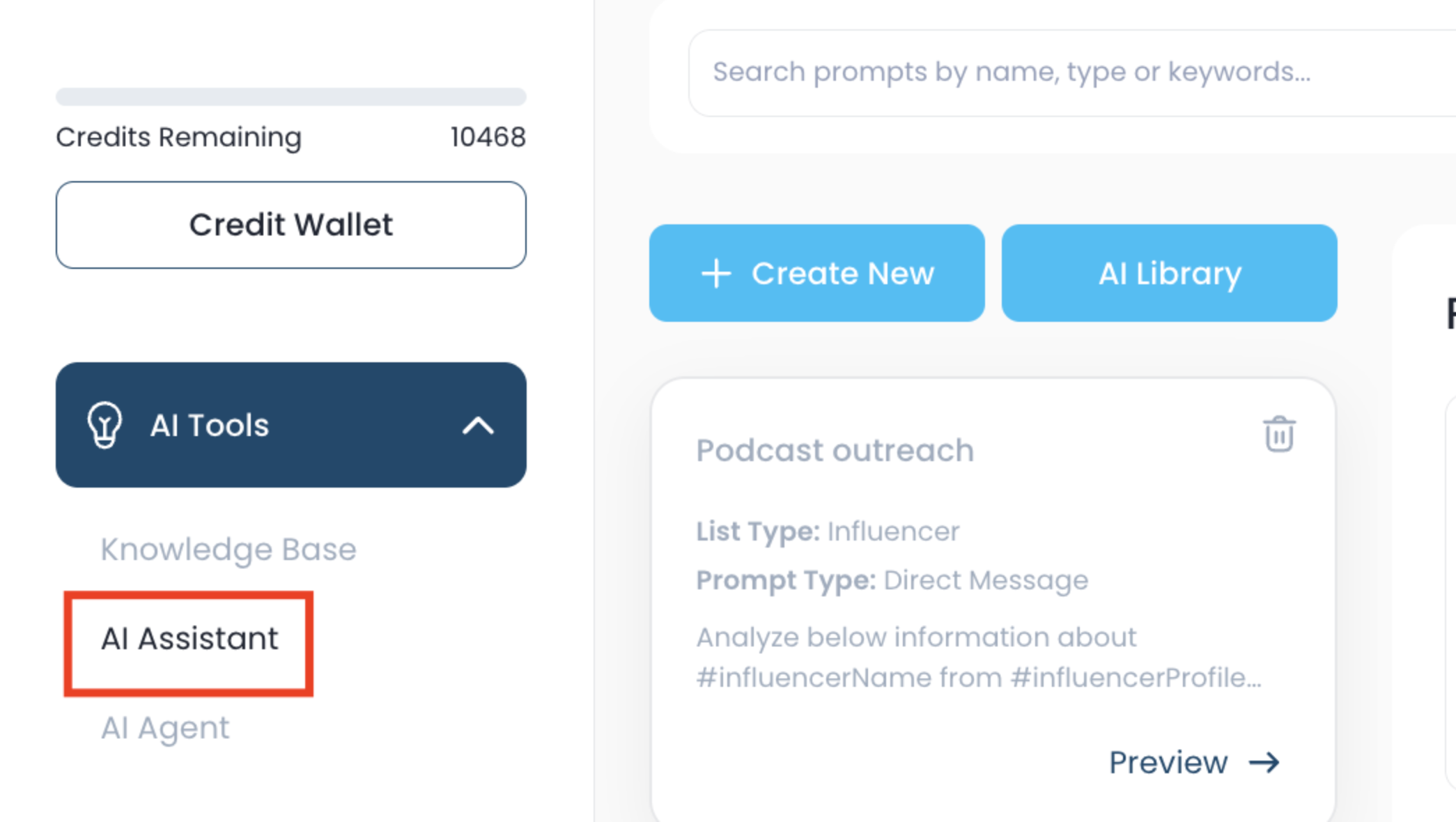
Step 1: Open AI Assistant
From your Lead Generation Tool dashboard, go to AI Tools → AI Assistant.
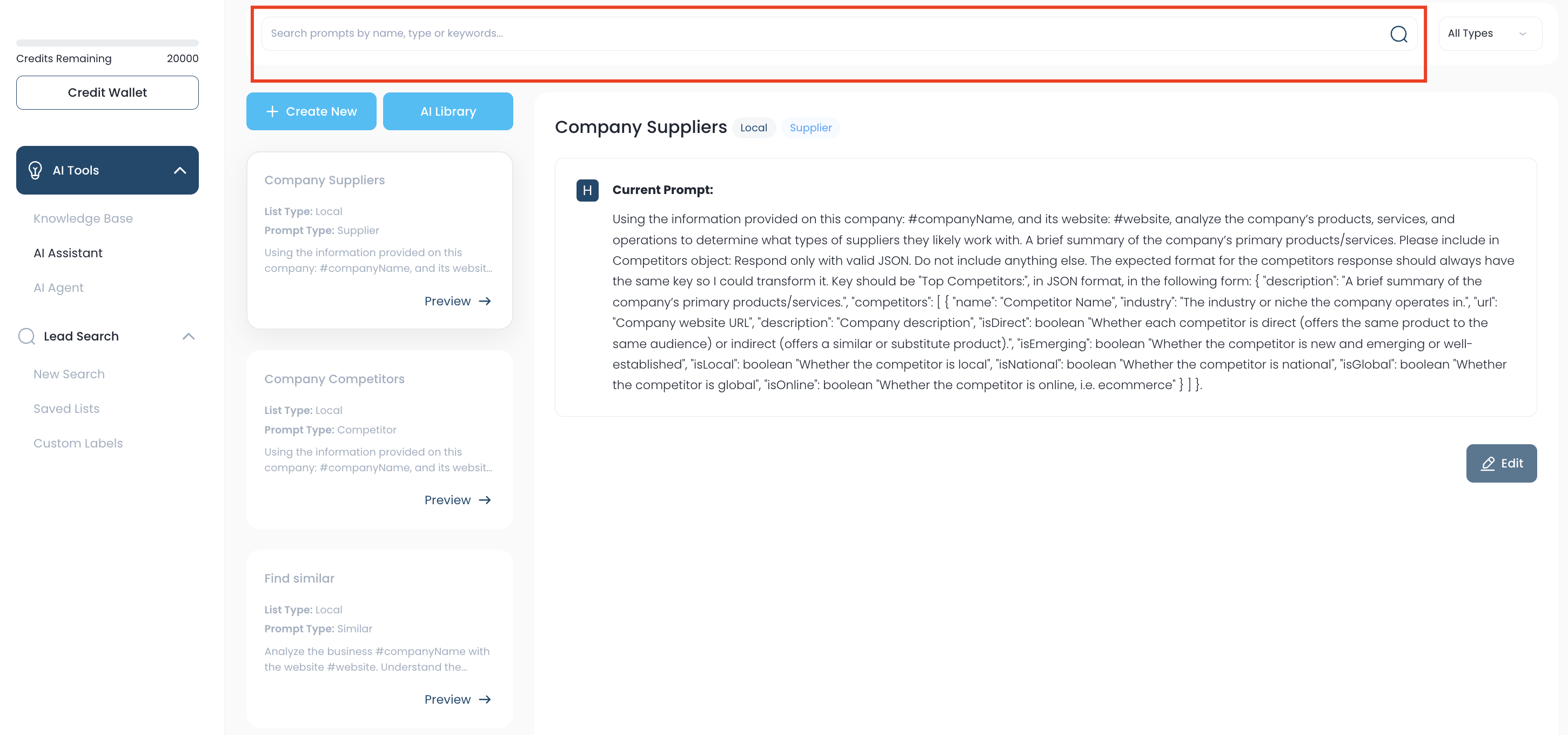
Step 2: Search Existing Prompts
Use the keyword search at the top to find existing prompts such as summaries, direct messages, or research outputs.
You can also filter prompts by type (Summary, Similar, Direct Message, Intro, etc.) based on your strategy.
Step 3: Explore the AI Prompt Library
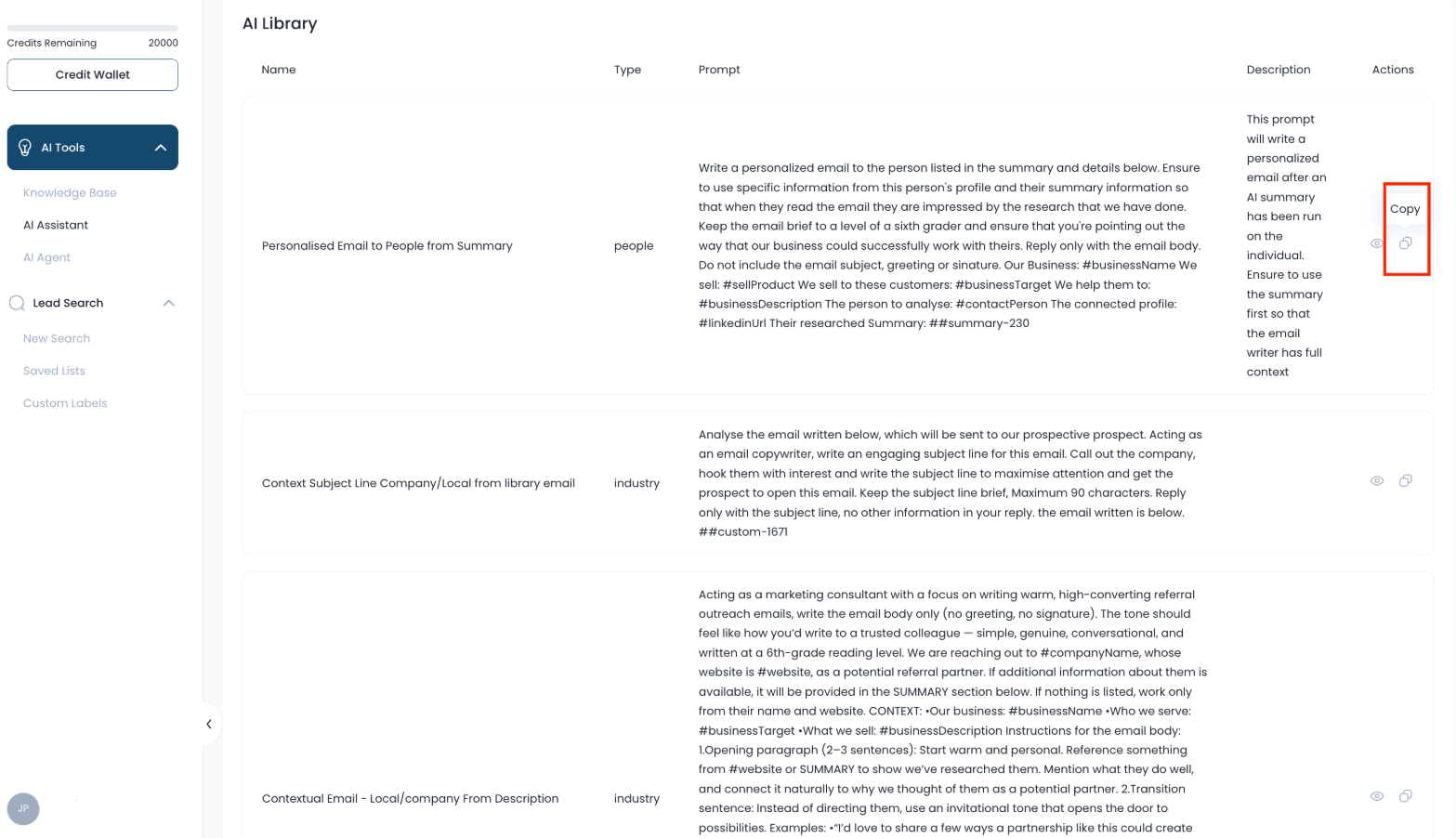
Click AI Library to access pre-built prompts not already in your list.
- Select a prompt you want to use
- Click Copy
- The prompt will be added to your AI Assistant prompt list automatically
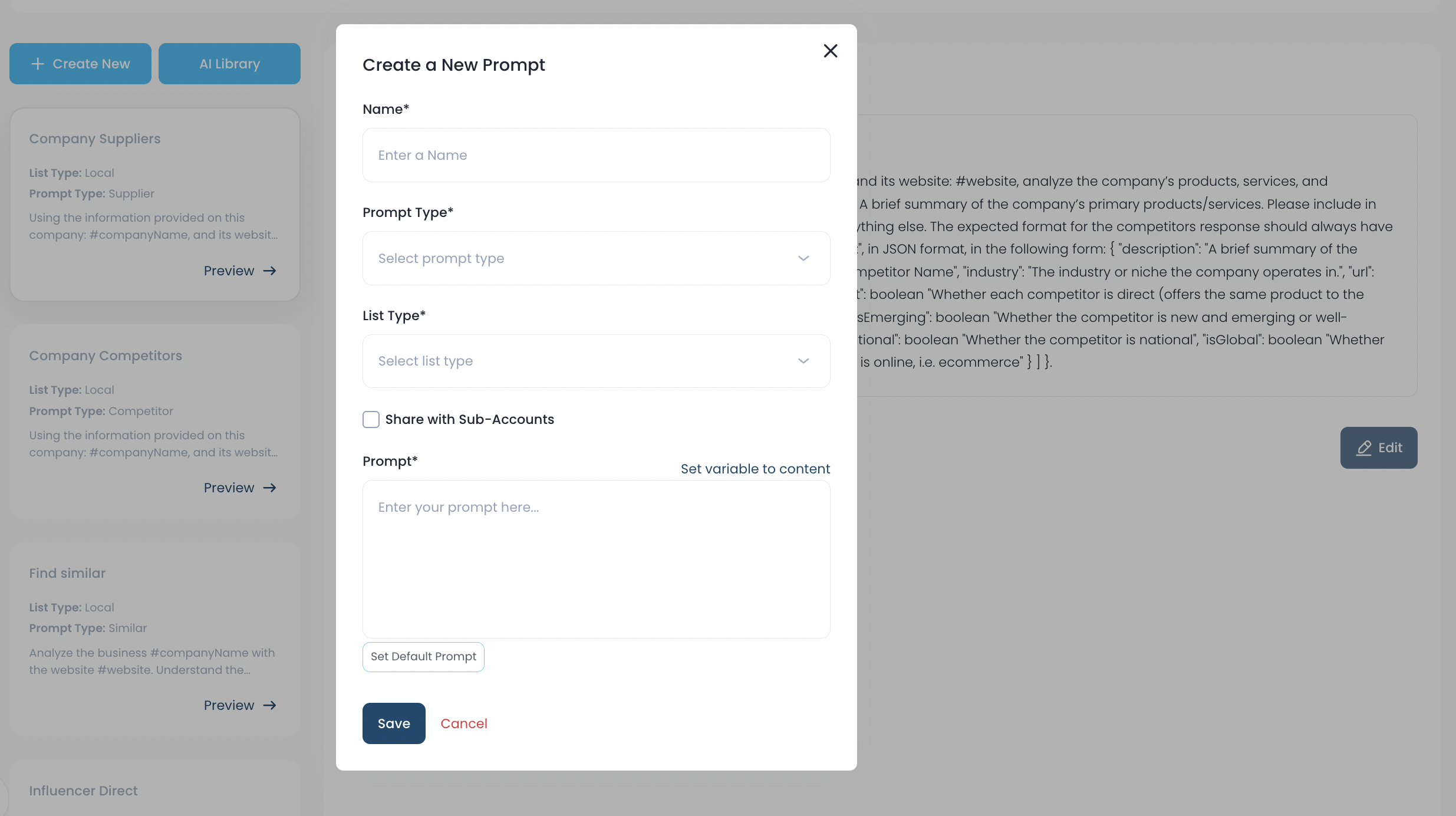
Step 4: Create a New Custom Prompt
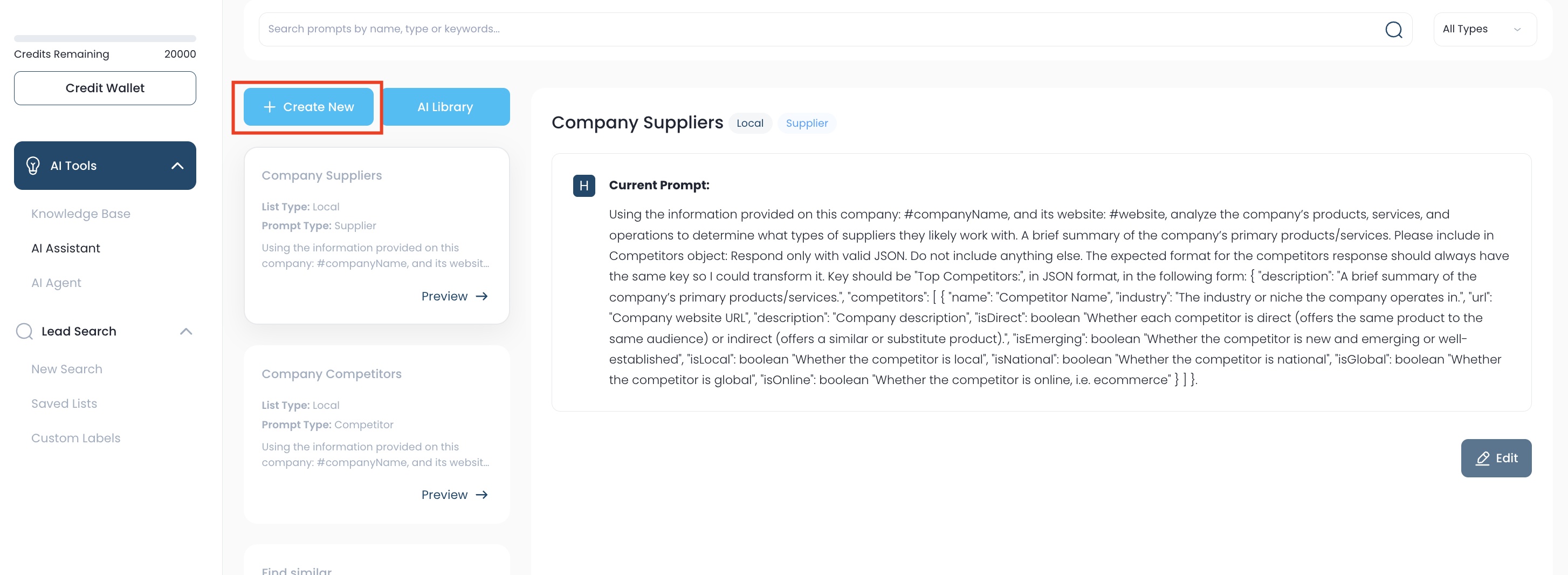
If you need a prompt that doesn’t exist:
- Click Create
- Enter a Prompt Name
- Select Prompt Type
- Choose Custom for full flexibility
- Use predefined types only when applicable
Step 5: Select the Correct List Type
Prompts must match the search list type:
- People Search → People prompt
- Local Search → Local prompt
- Company Search → Company prompt
Prompts will only appear in searches that match their list type.
Step 6: Add Prompt Instructions & Variables
Write clear instructions for your AI prompt.
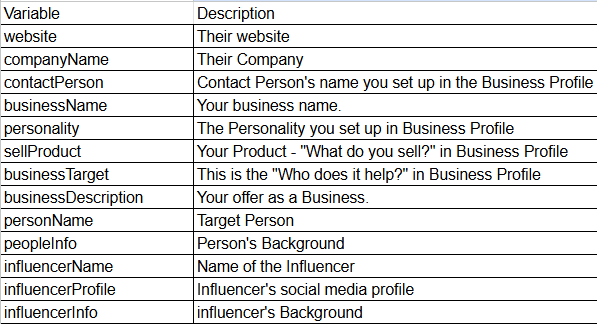
Use variables (similar to custom values in GoHighLevel) such as:
- Business Name
- Website
- Industry
Example:
“Do SEO research on the business using the business name and website.”
These variables create custom fields that will sync to your CRM when contacts are sent.
Step 7: Save the Prompt
Click Save to make the prompt available for use in your lead lists.
Step 8: Generate AI Results from a Saved List
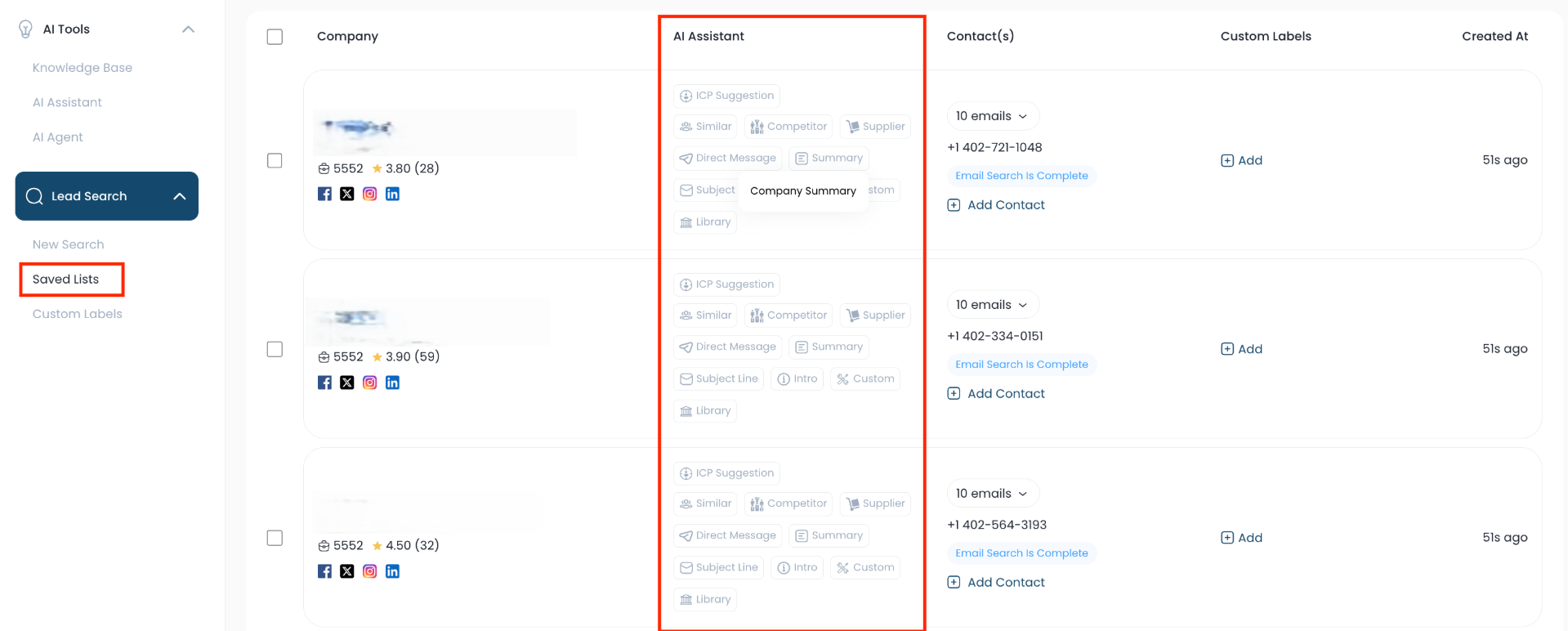
- Go to Lead Search → Saved Lists
- Open a list
- Under the AI Assistant column, select a prompt
- Click Generate
The AI will return results specific to each company or contact.
Step 9: Use AI Insights in Your CRM
When leads are sent to your CRM:
- Generated AI data becomes custom fields
- Results can trigger automations, workflows, or follow-ups
Below are the variables and their descriptions that you can use to generate prompts effectively.
Why Custom AI Prompts Matter
- Personalize outreach at scale
- Eliminate manual research
- Create CRM-ready insights automatically
- Align AI output with your exact strategy
Was this article helpful?
That’s Great!
Thank you for your feedback
Sorry! We couldn't be helpful
Thank you for your feedback
Feedback sent
We appreciate your effort and will try to fix the article